← Releases
Release 2026.10
With Release 2026.10, keeping an eye on critical orders becomes even easier: Your order types are now displayed directly in the main view. At the same time, the IQ Pilot takes the next step in its evolution: your real-world feedback and a new generation of language models form the foundation for numerous improvements.
Highlights:
- Keeping Critical Orders in Sight: Order Types in the Main View
- IQ Pilot: Evolving Together
- Sequence Order Programs During Plan State Creation
Customers with Long-Term Support (LTS) will receive the new features with the next LTS release in March 2027.
Any questions about this release?
Just reach out to me!

Share post
Analysis / Orders
Keeping Critical Orders in Sight: Order Types in the Main View
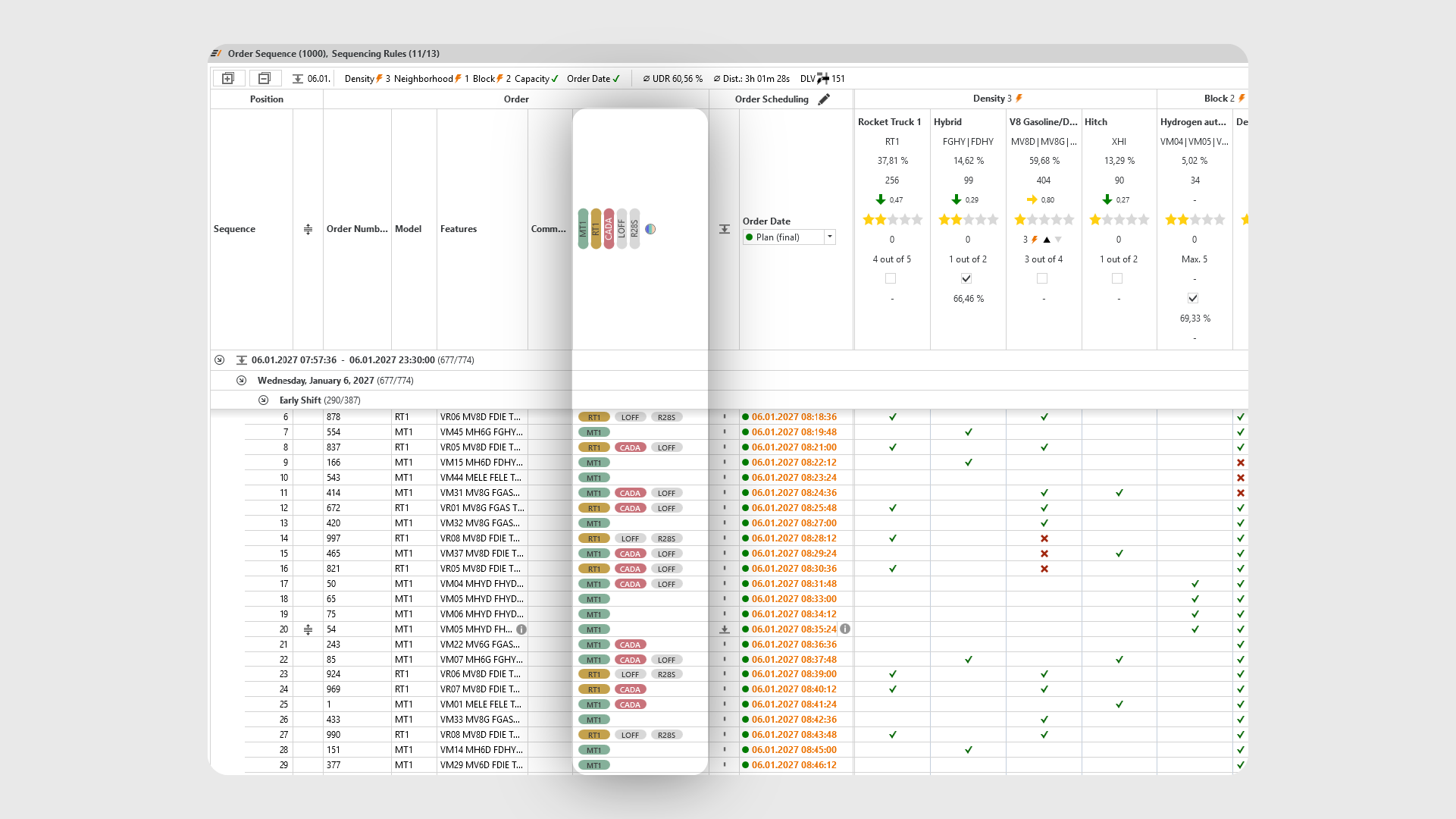
Imagine being able to immediately identify which orders in a sequence of hundreds are particularly complex or capacity-intensive, without having to inspect every order individually. That is exactly what order types provide: you define combinations of order features once, and SEQUIQ automatically marks all matching orders.
Order types have long been a key analysis tool. With this release, we are taking them to the next level in SEQUIQ: Order Types are now visible directly in the main view, with color highlighting, filtering capabilities, and targeted navigation.
Here’s how order types work:
In the Order Types dialog, you combine order features using logical operators (AND, OR, NOT) to create an order type. You can access the dialog via the main menu under Analyze / Order Types or, new with this release, directly through the edit icon in the header of the order types column.
A few examples:
- “Special Model X”: All orders of a specific model that is currently in ramp-up and requires particularly close monitoring.
- “Heavy-Duty Export”: All vehicles equipped with a trailer hitch and air suspension that are intended for overseas export and regularly overload.
- “Special Equipment & Non-Europe”: All vehicles with a specific optional feature whose target market is outside Europe. A combination that requires additional checks and should be monitored within the sequence.
Order types are stored on a user-specific basis, allowing you to define exactly the criteria that are relevant to your work.
Identifying Order Types at a Glance
A new column in the order sequence displays all assigned order types for each order as colored pills with with short description.
This allows you to immediately recognize that an order is, for example, a special order, capacity-critical, and currently at risk of missing its target date. The information is displayed directly alongside the model, order features, and order scheduling data, eliminating the need to switch views.
Color Highlighting for Better Visibility
If you work with many order types and want to keep a clear overview, you can optionally assign a color to individual types in the order type dialog. This allows you to visually highlight particularly important order types.
For a quicker option, use the magic wand in the “Color” column header: With one click, all active order types without a color are automatically assigned an available color. The ✕ next to it removes all assigned colors again.
Colors are applied consistently across SEQUIQ: The main view, drift analysis, and program analysis display the same order type in the same color. Order types without an assigned color are displayed neutrally. Color assignments are also included when exporting order types to Excel, making it easy to share both order types and their colors within the team.
If you are more interested in how frequently an order type occurs, use the toggle in the order type column header to switch to the take rate view. In this view, all order types are displayed in shades of gray: the darker the shade, the higher the take rate.
Navigate and Filter with Precision
Using the navigation arrows, you can move directly from one matching order to the next, allowing you to quickly review all special orders without manually scrolling through the sequence. The tooltip of a pill shows its description, take rate, and the number of associated orders.
For even more focused analysis, use the column filter. Filter the order sequence by one or multiple order types and display only the relevant orders. The “No Order Type” option is also available, allowing you to identify orders that are not assigned to any order type.
Good to Know
The new order types column is displayed automatically whenever active order types exist in the sequence and disappears again when the last active type is deactivated. Once you manually show or hide the column, your personal setting takes precedence.
Give it a try: Define your order types and always keep your critical orders in sight!
Start / Help & Support
IQ Pilot: Evolving Together
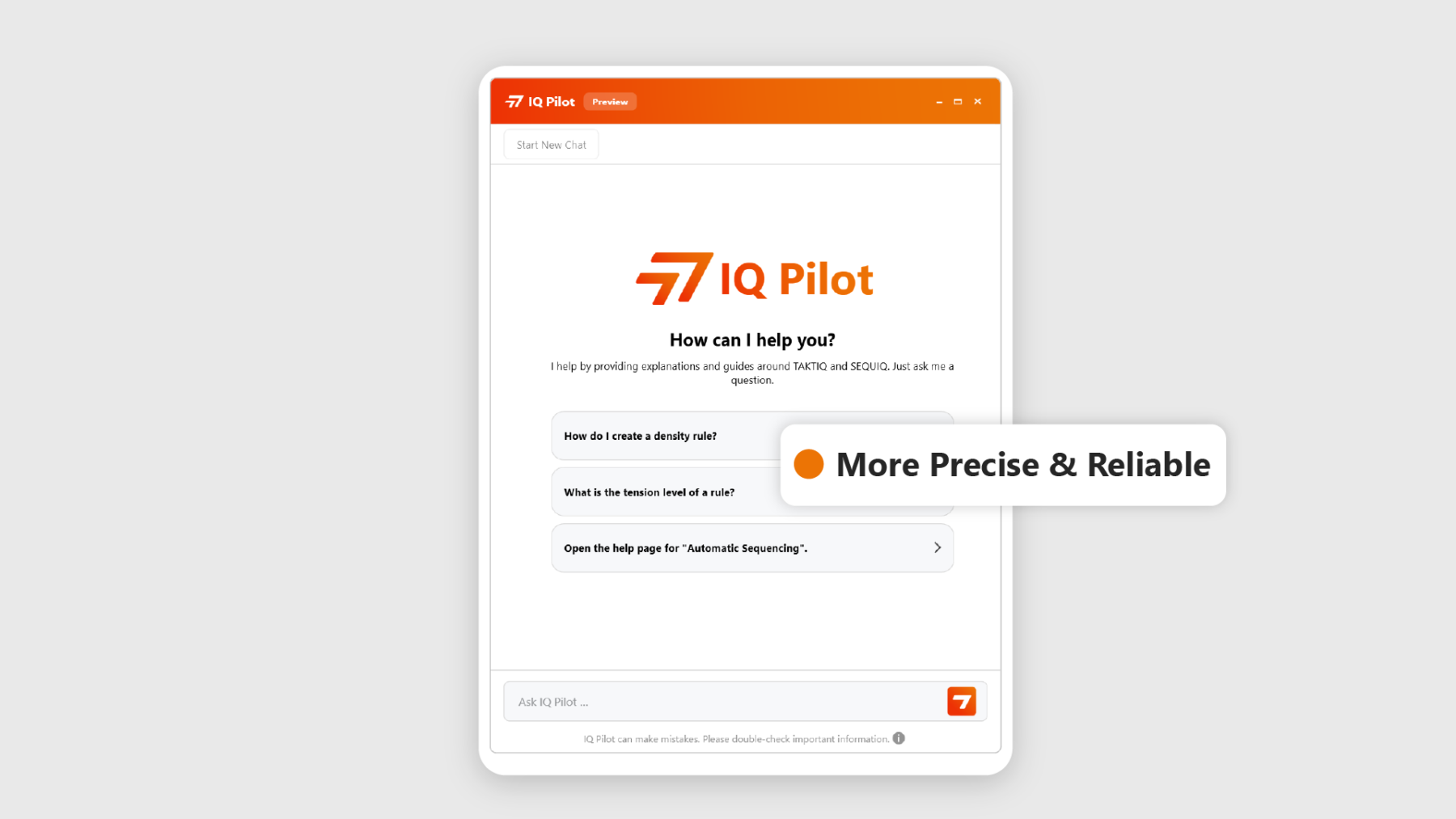
Since its introduction, we have continuously gathered insights from your day-to-day use of the IQ Pilot and incorporated them directly into its ongoing development. With Release 2026.10, IQ Pilot takes the next step forward.
New Technology, Better Results
A new generation of AI technology forms the foundation of the latest IQ Pilot improvements. The result is more precise answers, improved understanding of questions, and greater overall reliability.
For example, IQ Pilot can now ask follow-up questions when a request could be interpreted in multiple ways, respond consistently in the language of your question, and clearly indicate when no reliable information is available on a topic.
This helps you get the information you need for your daily work faster, directly within TAKTIQ and SEQUIQ.
From Everyday Work Directly into the Product
There is more behind this update than new technology alone. Your feedback from daily use has played a direct role in shaping these improvements. The real strength lies not only in the AI technology itself, but in the continuous cycle of practical experience, ongoing enhancement, and rapid delivery.
At the same time, we are already looking ahead. How can IQ Pilot support you even more effectively in the future, for example with questions related to your specific planning data?
Try out the improvements and let us know, using the thumbs up and thumbs down feedback options, how IQ Pilot is helping you in your daily work.
Further Improvements
- Sequence Order Programs During Plan State Creation: Order programs can now be sequenced directly as part of plan state creation. The applied sequencing rules can be automatically stored with the plan state.
(Document / Plan States)
All SEQUIQ Modules at a Glance
Expand SEQUIQ flexibly with our modules. Customize the solution to your individual production and achieve maximum benefit for your specific requirements.


