← Releases
Release 2026.8
Full control, maximum precision: With Release 2026.8, you can now selectively re-optimize individual orders – without losing your manual adjustments. Also new: comments directly on orders, more efficient rule set management, and an expanded trial phase for IQ Pilot, giving all users the opportunity to test the AI assistant.
Highlights:
- IQ Pilot: Try It Now and Help Shape It
- Targeted Optimization: Selective Sequencing for Selected Orders
- Order Comments: Capture Notes Directly in the Sequence
- Managing Rule Sets More Efficiently: Detail Overview and Batch Editing
Customers with Long Term Support (LTS) will receive the new features with the next LTS release in September 2026.
Any questions about this release?
Just reach out to me!

Share post
Start / Help & Support
IQ Pilot: Try It Now and Help Shape It
Since the last release, selected users have been able to try the IQ Pilot, our AI-powered assistant directly in SEQUIQ and TAKTIQ. The feedback has been clearly positive and has already been incorporated into improvements. That is why we are now making the IQ Pilot available to everyone as part of an extended trial phase, so that even more hands-on experience can flow into its further development.
In short: The IQ Pilot answers your questions about SEQUIQ and TAKTIQ directly within the application. You can clarify technical terms, find functions, get step-by-step instructions, or jump to the right help page with a single click. No context switching, no searching.
Where: You can find the IQ Pilot in the main menu.
Your feedback counts: The IQ Pilot is being actively developed further. Use the thumbs up or thumbs down after each answer and, if needed, the short comment field. This helps us improve the answer quality in a targeted way. All feedback is evaluated anonymously.
Further functions are already being planned. If you have any questions, please feel free to contact our support team or reach out directly to your consultant.
Optimize / Order Sequence II (Automatic)
Targeted Optimization: Selective Sequencing for Selected Orders
Does this sound familiar? You have optimized your order sequence, manually adjusted individual orders — and now the surrounding orders show new rule violations. Should you optimize everything again? That would overwrite your manual adjustments.
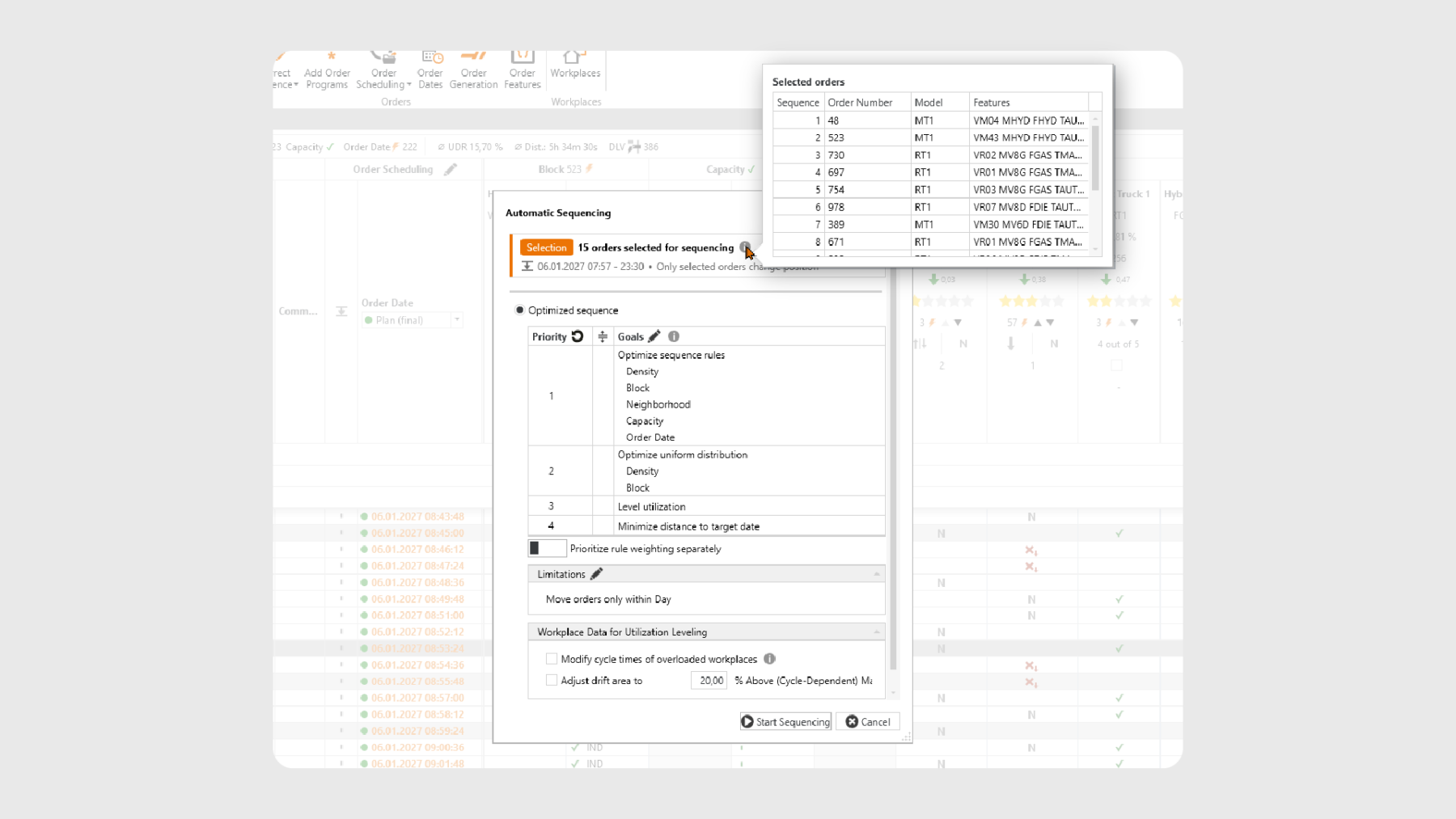
With the new selective sequencing function, you can select exactly the affected orders and optimize only those. All other orders remain unchanged. Whether you want to resolve local rule violations, re-optimize neighboring orders after a manual move, or optimize only orders of a specific model or with certain features — you decide which orders are allowed to move and which ones stay in place.
How to use selective sequencing
- Select orders: Select the required orders using multi-select: Ctrl + click for individual orders or Shift + click for continuous ranges.
- Open the function: Right-click the selection and choose “Auto Sequence Selected Orders”.
- Configure and start: The familiar configuration dialog opens. The header clearly indicates that only the selected orders will be optimized, including the number of selected orders. Via the info icon, you can view the selected orders in detail — including sequence position, model, and features at a glance. The configuration of sequencing goals and priorities works just as before.
Selective Sequencing Meets Filtering
Selective sequencing becomes especially efficient when combined with column filters or the global search. Filter your order list — for example by model, feature, or target market — and then select “Auto Sequence Visible Orders” from the context menu. With one click, all filtered orders within the planning horizon are selected for optimization, without having to click each order individually.
For example: You filter by model “MT1”, select all visible orders for sequencing via the context menu, and optimize only the MT1 orders among themselves — without affecting the order of the RT1 orders.
Good to know: Planning horizon and fixed orders
The existing rule still applies: Only orders within the planning horizon can be automatically sequenced. If your selection contains orders outside the planning horizon or fixed orders, a notification dialog will inform you before the optimization starts. You can then decide whether to continue without these orders or cancel the process — your selection will remain unchanged.
Try selective sequencing in your next planning run!
Start / Operate & Navigate (Sequencing)
Order Comments: Capture Notes Directly in the Sequence
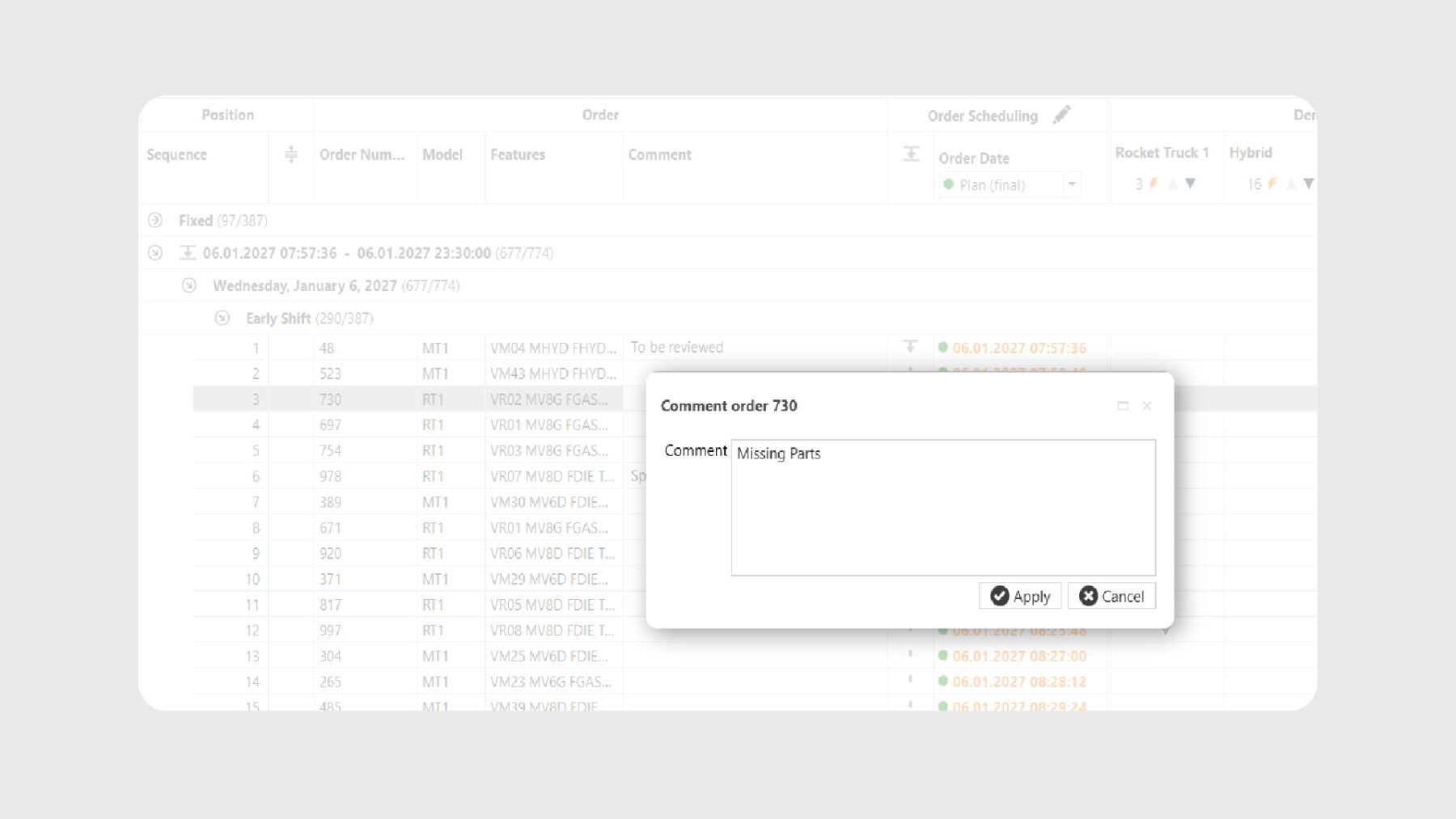
You notice something about an order during planning – an anomaly, an open point, or the reason for a manual adjustment. What now? Until now, this usually meant using an external note, keeping an Excel file open on the side, or simply trying to remember it. With the current release, there is a better solution: SEQUIQ now offers a comment field at order level.
No more sticky notes next to your screen
During planning, knowledge is constantly created that is not reflected in sequencing rules or order data – anomalies, items requiring review, or reasons for manual interventions. With the new comment field, you can capture this information directly on the order instead of having to remember it.
Examples:
- Some orders should be reviewed again later? Mark them with “Review” and find them again in no time using the filter.
- An order should currently not be sequenced? “Blocked – parts shortage” makes the reason directly visible.
- You have manually moved an order? “Moved forward due to capacity gap” documents your decision directly on the order.
How to maintain comments in SEQUIQ
The comment field is available as an optional column in the main view – as usual, you can adjust its width and position and save it as part of your layout.
You can edit comments for a single order or efficiently in batch for multiple orders at once. You can choose whether the change should apply to the currently selected orders or to all displayed orders. Three options are available:
- Set – overwrites the comment with a new value
- Add – adds text to an existing comment
- Remove – deletes the comment for all affected orders
Example: You want to mark all orders of a specific model? Filter, select, choose “Set”, enter the comment – done.
Using the search and filter functions, you can find commented orders again at any time – even when working with large order volumes.
Import and export options
Comments initially live in the current planning session and can be saved into TKQ files. If you want to persist them beyond that, the field is also available as an optional field in the Excel import and export formats as well as in the TAKTIQ standard interface. Your existing interfaces and data flows remain unchanged – no adjustments required.
Try the new comment function directly in your next planning run!
Document / Sequencing Rules
Managing Rule Sets More Efficiently: Detail Overview and Batch Editing
Configure ten rule sets identically after an import, or quickly check which rules are included in a set before changing its validity? With two new functions in the Rule Sets tab, you can now do this in seconds.
Rule set content at a glance
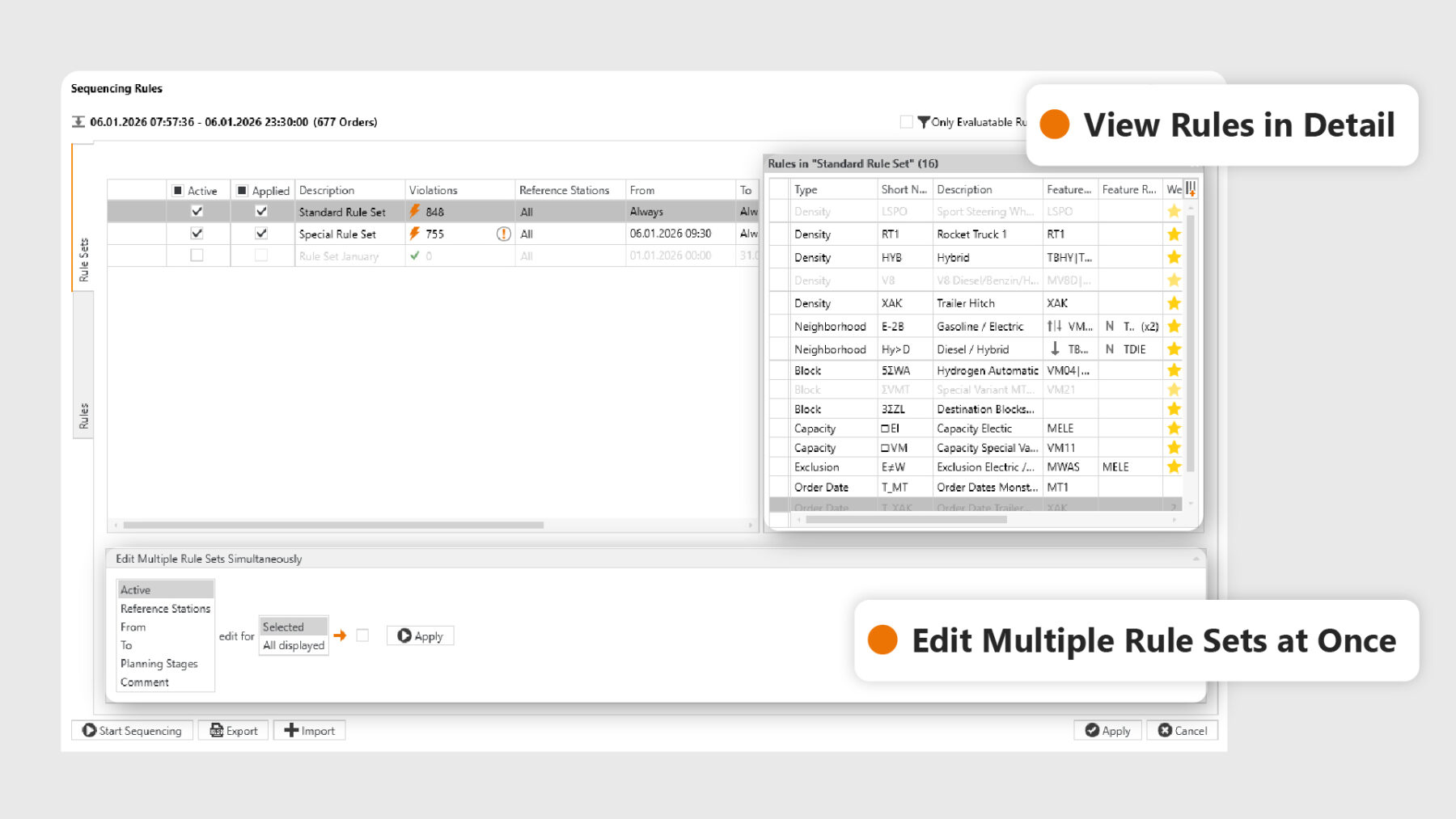
In the Sequencing Rules dialog, an expandable side panel is now available. It shows you all rules contained in a rule set across all rule types — including feature rules, weighting, and comment.
Here’s how it works: Select a rule set. The tab on the right-hand side shows the name of the rule set and the number of rules it contains. Click the tab to open the detail panel — click it again to close it. You can configure the displayed columns freely using the column editor.
Jump directly to a rule: You see a rule in the overview that you want to check or edit in more detail? Hover over the row and click the jump icon and SEQUIQ takes you directly to the corresponding rule type tab and selects the rule for you.
Edit multiple rule sets at once
The Rule Sets tab now also supports batch editing for rule sets. It follows the same familiar approach you already know from sequencing rules. Select multiple rule sets using Ctrl + click or Shift + click, choose the required property, and adjust all selected rule sets in one go. The following properties can be edited in batch: reference station(s), planning level(s), valid from, valid to, active, and comment.
This helps you stay in control, even when making larger configuration changes, and saves valuable time.

Further Improvements
- Create and Delete Rules Directly in the Main View: New sequencing rules can now be created directly from the main view, without having to open the sequencing rules dialog first. When hovering over the rule type header, a plus icon appears and opens a flyout with the rule type already preselected and, where applicable, the rule set as well. Existing rules can also be deleted directly from the respective rule column.
(Document / Sequencing Rules) - Manually Deactivate Rule Sets Permanently: Using the “Active” checkbox, you can permanently define whether a rule set should be used. A rule set marked as inactive remains inactive until it is manually activated again. The “Applied” checkbox is controlled automatically by SEQUIQ depending on the planning level. For example, if you load the planning level “Plan (final)”, only rule sets assigned to this planning level are marked as “Applied”.
(Document / Sequencing Rules) - Simplified Line Selection for Multi-Line Planning: In the main view, clear buttons are now available for each reference station, directly in the selection bar above the sequence. Click a button to switch the active reference station. The tooltip for each button provides a detailed breakdown of rule violations by rule type.
(Start / Operate & Navigate (Sequencing))
All SEQUIQ Modules at a Glance
Expand SEQUIQ flexibly with our modules. Customize the solution to your individual production and achieve maximum benefit for your specific requirements.


